Free Volleyball Stat App for Coaches: SoloStats123
Track unlimited stats free on iPhone, iPad, and Android. Works offline, and every match is backed up automatically.
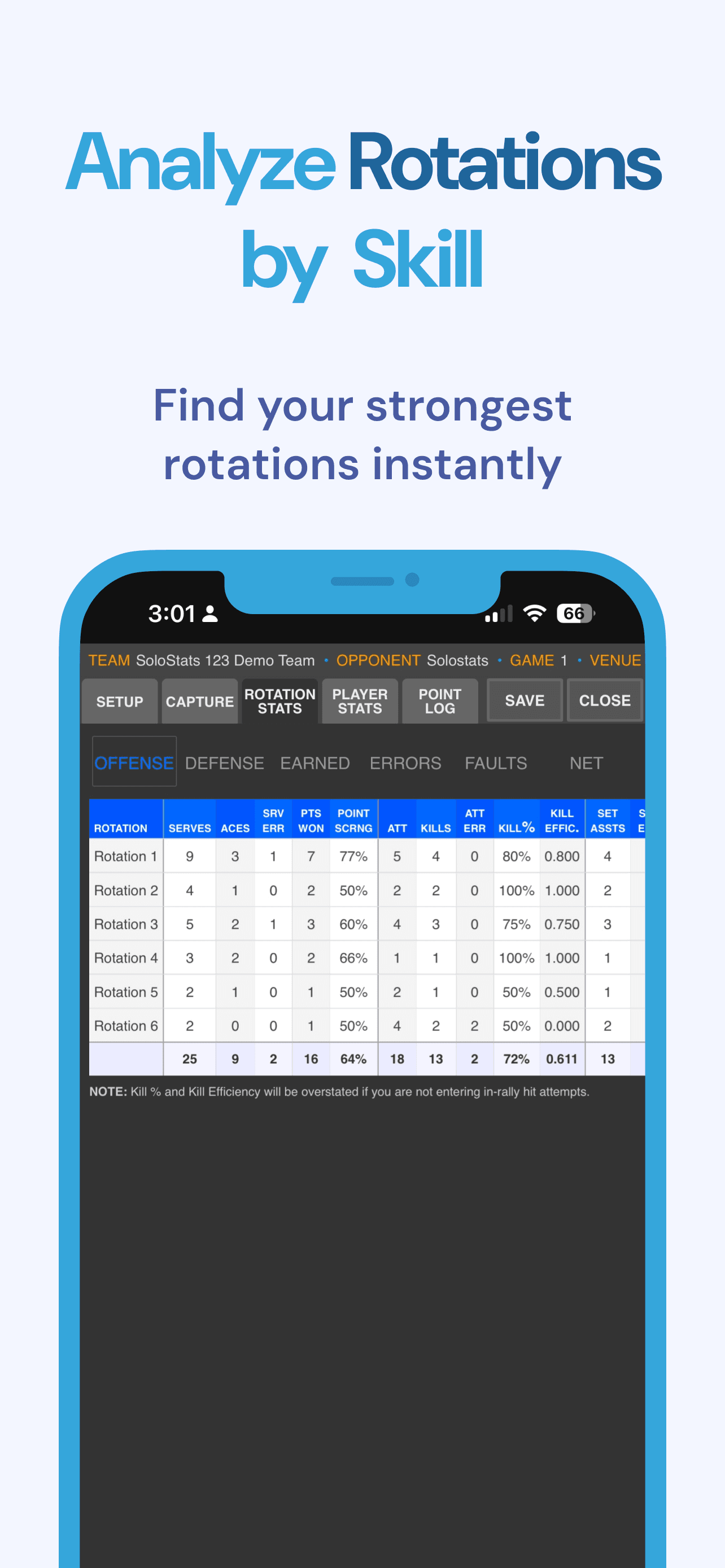
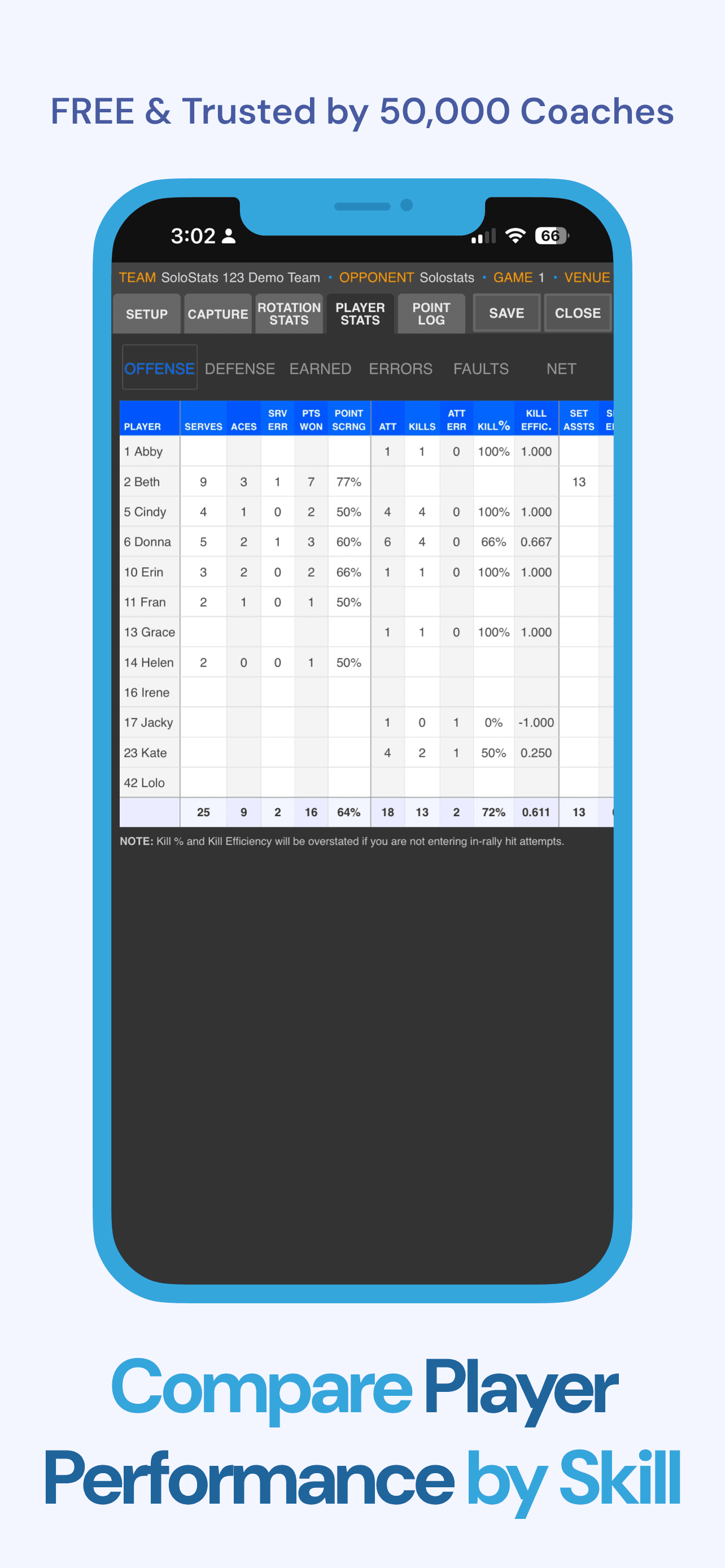

4.7 · 504 ratings

4.3 · 275 ratings
Used by 50,000+ coaches
Have feedback? Share a feature request →
Next step after tracking
Your stats, analyzed in about 15 seconds
SoloStats Insights turns the matches you track into a clear readout of how your team performed and what to practice next.
Comparing options? See best volleyball stat apps. Looking for free-only detail? Free volleyball stats app.
What Coaches Say
“SoloStats123 helped us remain in the moment of coaching and not worry about missing any plays. With easy buttons to track players and plays we are able to provide quality coaching.”
BJ, Club Coach
“The automated and efficient summarization of statistics using SoloStats123 has been vital in enabling our coaching staff to make well-informed decisions during games.”
Marietta, Owner of Red Rock Volleyball Club
“I was struggling to track player stats during games and practices, which made it challenging to provide immediate, data-backed feedback to my athletes. SoloStats123 and WebReports completely changed that.”
Shane, Club Head Coach
Looking for a fast, easy, and reliable way to track volleyball stats?
SoloStats123 is the volleyball stat app coaches trust to capture match data quickly without breaking game flow. From first serve to final point, you can log kills, assists, blocks, digs, serves, and errors in just a few taps, then review clear totals after each set or match. If you need an app for volleyball stats that works the way coaches actually coach, SoloStats123 keeps entry simple, screens readable, and reports useful. Built for iPhone, iPad, and Android, it starts free, runs offline in any gym, and every match is backed up automatically so your staff can make smarter lineup and training decisions.
Interested in learning more about the full suite of SoloStats coaching tools? See all SoloStats volleyball apps
Need a quick refresher on what to track? Visit the VB stats hub for role-based stat benchmarks and definitions.
Why Coaches Love SoloStats123
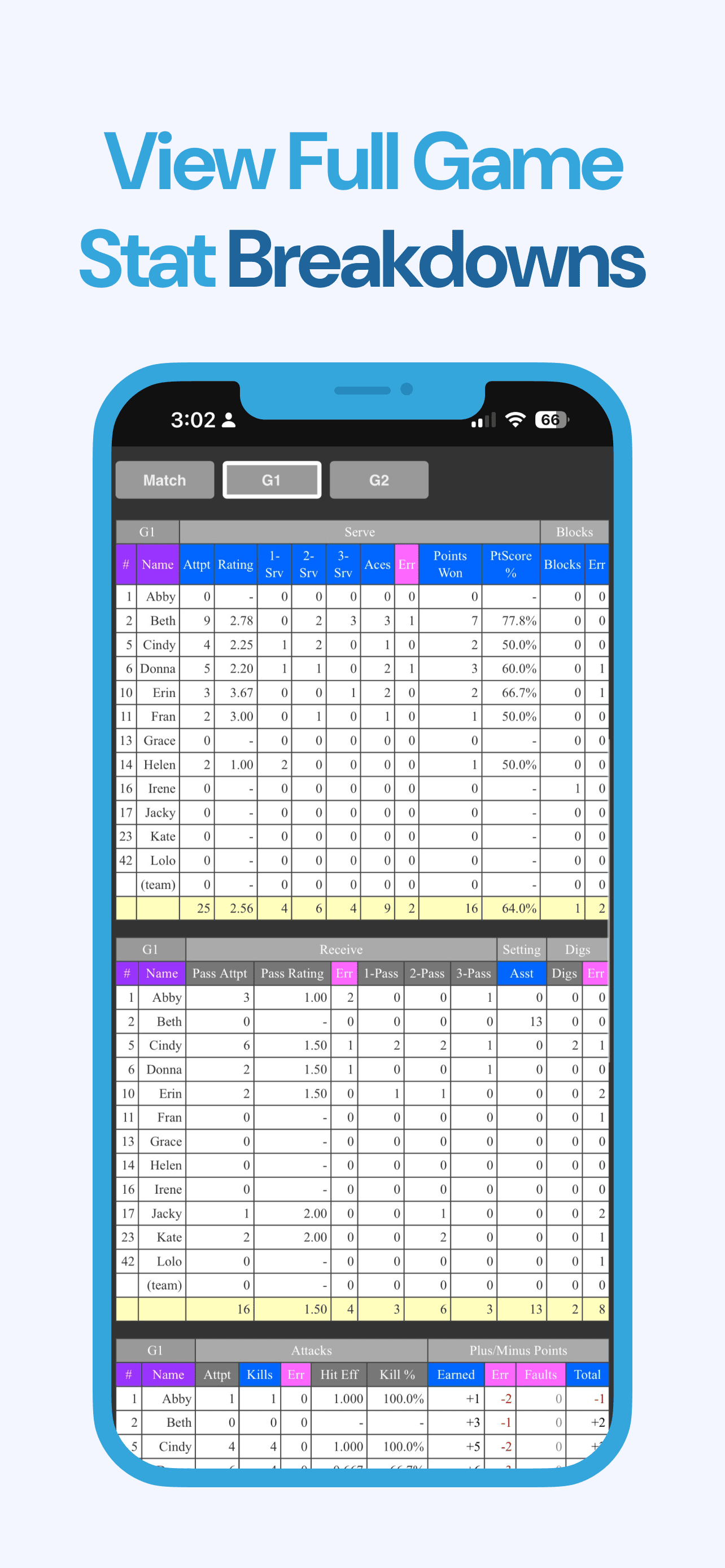
Record All Major Stats
Track kills, digs, serves, passes, and errors with ease
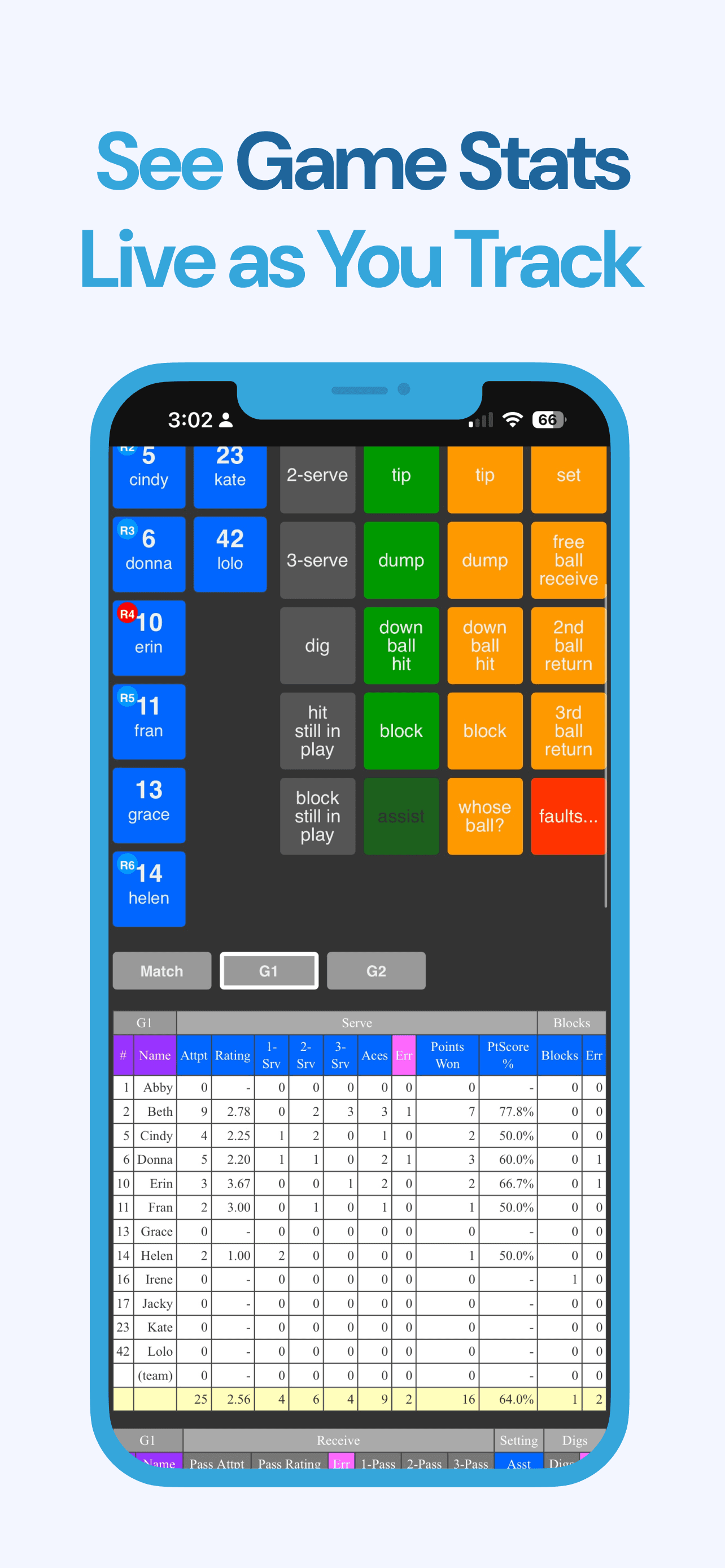
Live Totals & Percentages
See live totals and team percentages right in the app
Automatic Analysis
A readout of how your team performed with SoloStats Insights. Included in Standard.
Rotation & Timeout Tracking
Track current rotations, serving order, and timeouts
Works Offline
No Wi-Fi required, track matches anywhere
Export to MaxPreps
Export to MaxPreps, Hudl, and Google Sheets from WebReports with Standard.
Available on iPhone and iPad
Volleyball Stats App for iPad
If you prefer a larger screen on the bench, this volleyball stats app for iPad gives you more room to track players, touches, and rotations without slowing down. Coaches can enter stats quickly during live play, review totals between sets, and share clean reports after the match. It is built for real match speed, clear visibility, and easy handoffs between staff members.
Download the volleyball stats app for iPad →Volleyball Stats App for iPhone
Need to move quickly along the sideline? The volleyball stats app for iPhone is built for one-hand use and fast entry so you can capture every touch in real time. Record key actions, check live percentages, and keep your match flow smooth even in tight gym spaces where speed and focus matter most.
Download the volleyball stats app for iPhone →See SoloStats123 in Action
Get More with Standard
Looking for a fully free option? See what's included at no cost →
Free tracking gets you through the match. Standard helps after the whistle, when you need answers for practice, parents, and the next lineup.
How Standard helps
Stop guessing what to practice
SoloStats Insights turns tracked matches into clear priorities. 5 team reports a month.
See past live set totals
WebReports covers match, tournament, and season views so you are not rebuilding numbers by hand.
Keep stats in reach on the bench
SoloStats Coach puts your numbers on your phone during matches.
Hand off devices without starting over
Sync team data from WebReports to another device when staff share tracking duties.
Tutorial & Getting Started
Quick Start Guide
SoloStats123 uses a simple 1-2-3 flow that anyone can learn in minutes. Here's how to get started:
Select Player
Tap the player who touched the ball
Select Action
Tap the action (kill, error, assist, dig, etc.)
Confirm
Stats are automatically recorded and calculated
📚 Tutorial Resources
SoloStats123 Capture Buttons Explained
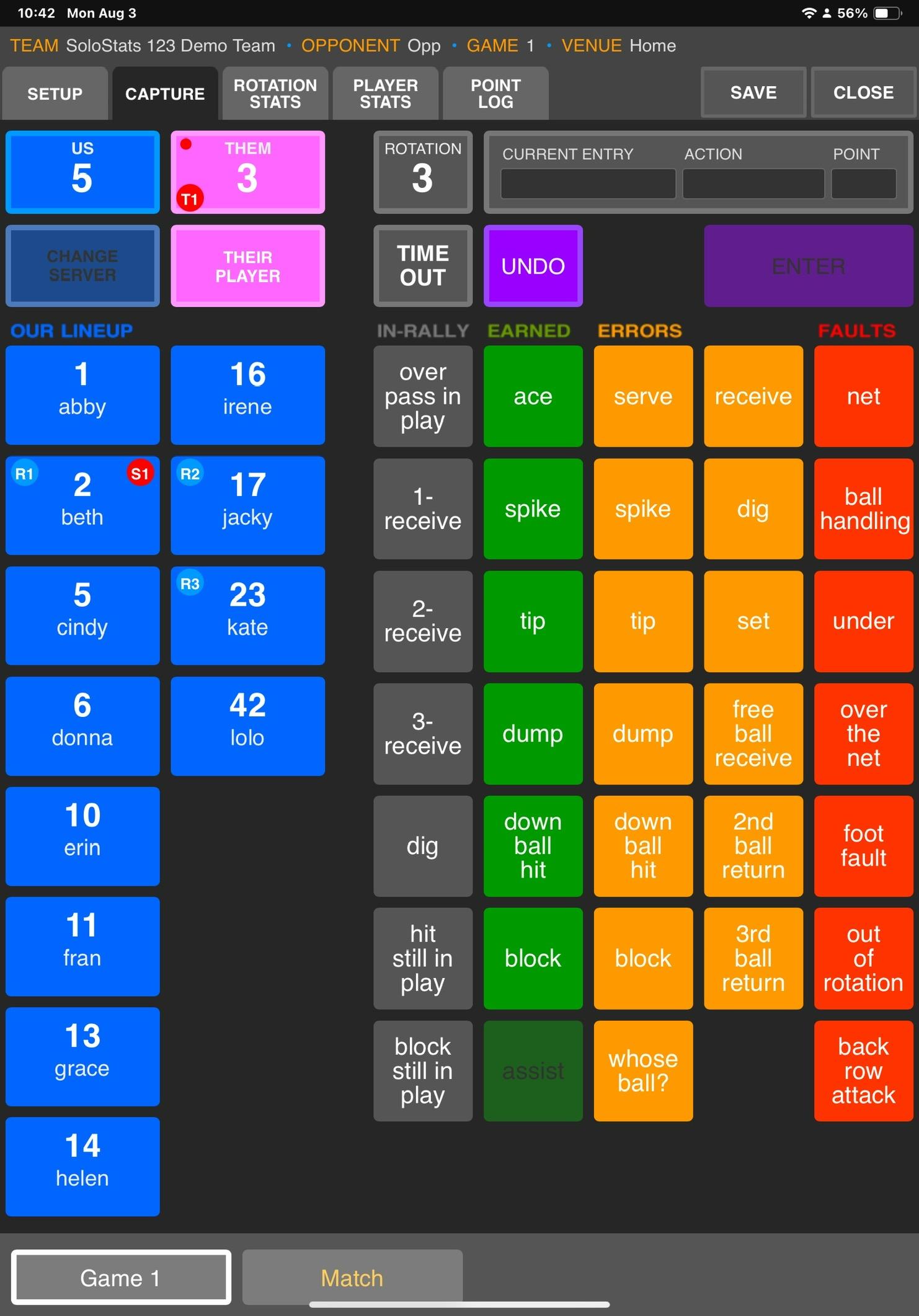
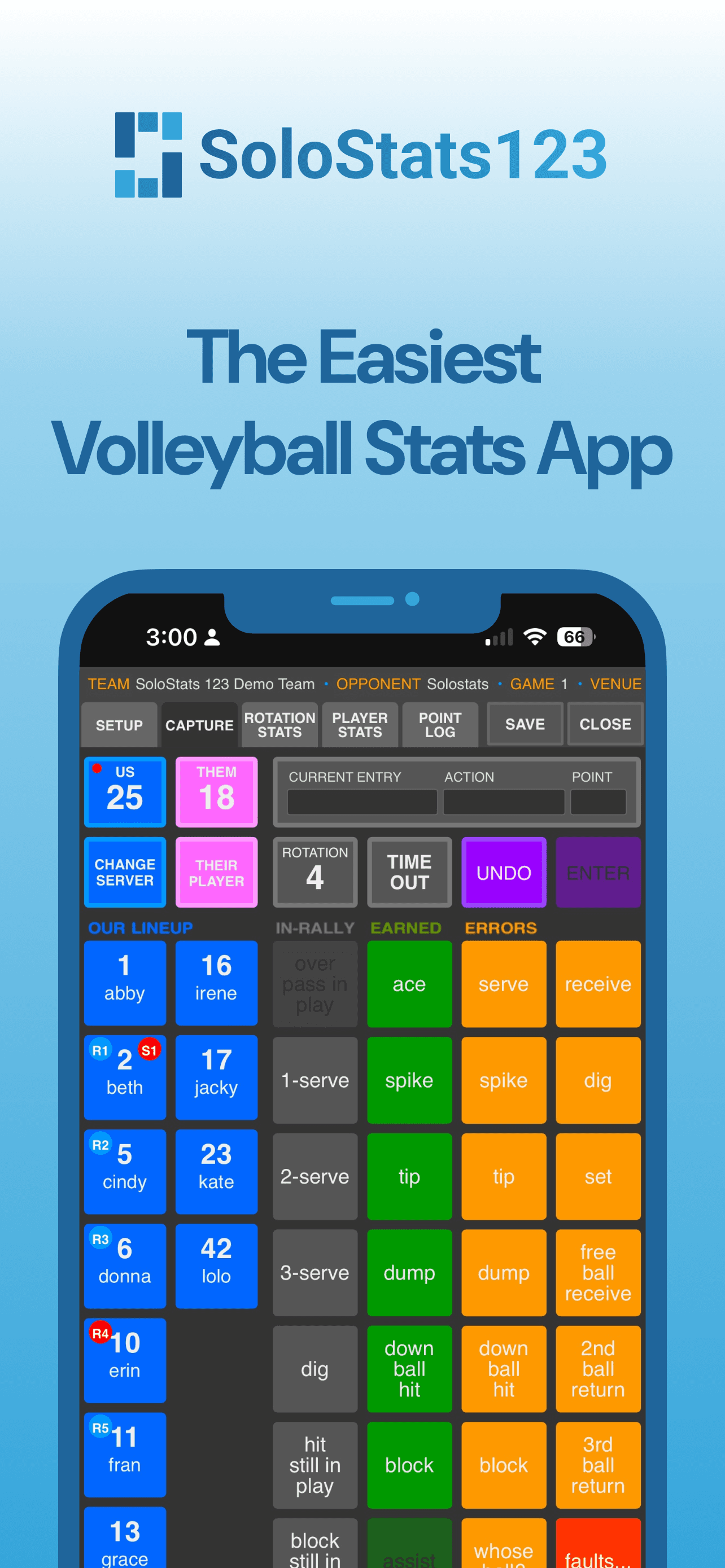
- 1Tab row. Setup, live capture, and three report views. You never leave the match to check a number.
- 2US / THEM scores. The red dot marks who is serving. Tap to adjust the score or serving team.
- 3TIME OUT. Logs a timeout; the
T1badge on the score shows one has been used. - 4ROTATION. Tells you what rotation your team should be in. Tap to adjust if there is an error.
- 5Entry bar. Three fields: who touched it, what happened, and who won the point.
- 6Player tiles. Tap a player tile when that player has completed an action.
- 7The four action columns. Grouped by how the rally ended, not by skill.
- 8CHANGE SERVER / THEIR PLAYER. Correct the server, or attribute an action to an opponent.
- 9UNDO. Reverses the last entry. While an entry is in progress this button becomes CLEAR.
- 10ENTER. Confirms the entry. Stays greyed until the entry is complete.
- 11Game / Match stat toggle. Scroll down to see stats by game or match without leaving the capture screen.
- 12SAVE / CLOSE. Tap CLOSE when the game is over and you are ready to move on to the next game or to complete the match.
- 13Player badges.
R1toR6is the serving order, red when that player is serving.S1is the setter, red when active. Every set assist goes to the active setter, and you choose them in Setup before the match.
SoloStats123 support · Section 2
The capture screen
The capture grid is not a list of stat buttons. It is sorted by how the rally ended.
Four columns, four endings
IN-RALLY grey
The rally kept going.
EARNED green
Somebody won the point outright.
ERRORS orange
Somebody lost it with a mistake.
FAULTS red
Somebody lost it with a violation.
The color says what kind of ending. The POINT field in the entry bar says whose.
The entry flow
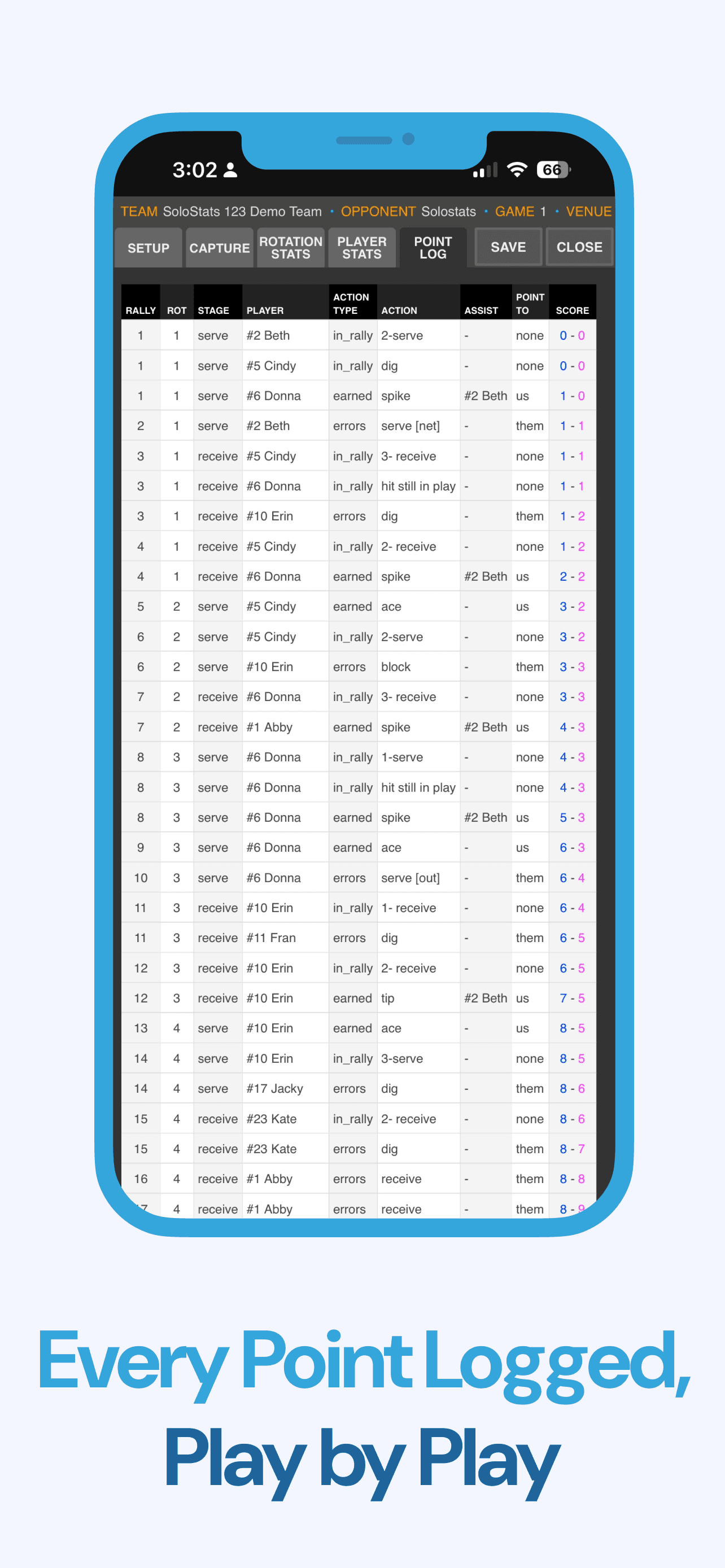
Recording one rally
Tap the player. Their number appears in CURRENT ENTRY.
Tap what happened. The action lands in ACTION, and the column it came from says how the rally ended. The third field, POINT, records whose point it was; the color says what kind of ending, not which team won it.
Tap ENTER. It stays greyed until the entry is complete. While you are mid-entry, UNDO becomes CLEAR.
IN-RALLY column
The same three buttons change with the serve
They serve
1-receive·2-receive·3-receive
We serve
1-serve·2-serve·3-serve
After the serve is received
Greyed out once the ball is in play: the serve or receive has already happened.
The app swaps these automatically based on who is serving. A 3-serve is the opponent's 1-receive, so you never have to do that conversion yourself.
Action Button Definitions
Understanding action buttons helps identify specific team problems. A high level of detail allows you to distinguish between different types of errors and actions.
Important:
For all earned spike, tip, and down ball hit entries, the primary setter you specified for the rotation in the Game Setup will automatically get credit for a set assist, unless the ensuing entry is an Assist by a different player. Each of these actions also counts as a kill in the stats.
Spike, tip, dump, and down ball hit errors all count as attack errors in the stats.
📚 Learning Resources
💡 Tips for Success
- ✓Start with a practice match to get comfortable
- ✓Keep your device charged - matches can be long
- ✓Review stats after each set to verify accuracy
- ✓Works offline - no Wi-Fi needed during matches
Sync and Backup
Backup: Every account, free or paid, backs up automatically to WebReports. Use the Backup button in Account settings to make sure everything has uploaded, especially after network issues.
Sync: With Standard or Pro, you can download team data from WebReports to another device. Sync is one-way: from WebReports to your device.
Sync is one-way: from WebReports to your device.
How to Sync Between Devices
On your primary device, tap Account and perform a Backup to save data to WebReports.
On your secondary device, tap Account and select "Sync data with another device".
Select your primary device from the list and tap Sync. Your device will be refreshed with data from WebReports.
Frequently Asked Questions
Can I see full match and season stats in the free version?
The free version shows live set totals, and every match is backed up. For full match, tournament, and season reports, Standard includes SoloStats Coach (mobile stats) and WebReports (full analytics).
Is SoloStats123 really free?
Yes. You can record unlimited stats for free, and every match is backed up automatically. Standard adds WebReports, sync to other devices, exports, and SoloStats Insights.
What is SoloStats Insights?
An automatic readout of how your team performed and what to practice next, from the stats you track here. It takes about 15 seconds. Standard includes 5 team reports a month. SoloStats Insights
Does it work offline?
Yes. SoloStats123 can track matches without Wi-Fi, and every match is backed up when you reconnect.
Can I use SoloStats123 for tournaments or multiple teams?
Absolutely. Standard is built for managing full programs and multi-device collaboration.
Does it integrate with MaxPreps and Hudl?
Yes. With Standard, export from WebReports to MaxPreps, Hudl, or Google Sheets.